

Monitors
An Introduction to health monitors
The Ceeview health monitors are responsible for retrieving information used to represent the health of an asset or group of assets.
Health is represented as an integer value in the range 0 to 100, and is often grouped into the following intervals
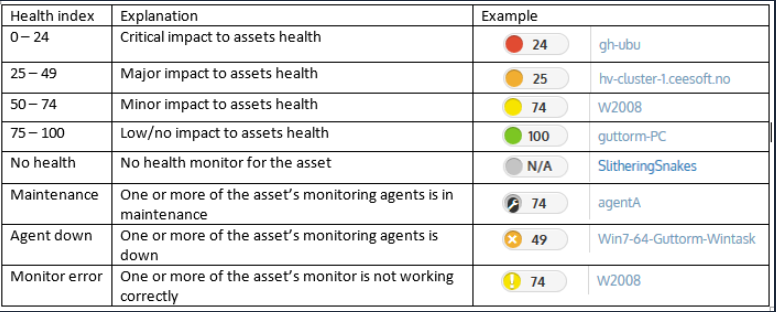
The latter three rows illustrates situations where there is uncertainty about the health displayed as at least one of the agents/monitors are not working correctly, moving the cursor on top of the health icon may in these cases provide more information regarding the cause.
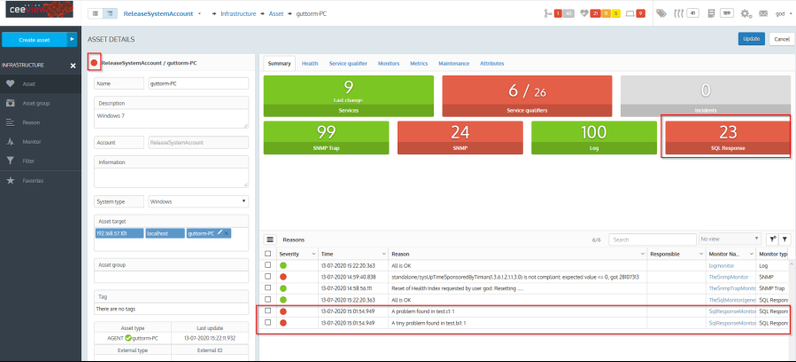
Each monitor generates health consisting of a health index and a set of supporting reasons, the overall health for an asset is the worst/lowest health of all the health indexes generated for the asset. While an asset normally only have one monitor of each type (system , process, ….), Ceeview supports having multiple monitors of same type and in these cases the health shown in the buckets in Summary (System, Process, Events …) will be the worst/lowest health of all monitors of that type.
Normally there will be a correlation between the health index's color and the most severe supporting reason, for instance an "orange" health will normally have an "orange" reason as its most severe reason. Please note however that it is fully at the monitors discretion how to calculate the health index based on its set of supporting reasons. Using the External health monitor you may for instance set the health index to 100 while providing a set of reasons including a reason with critical/red severity.
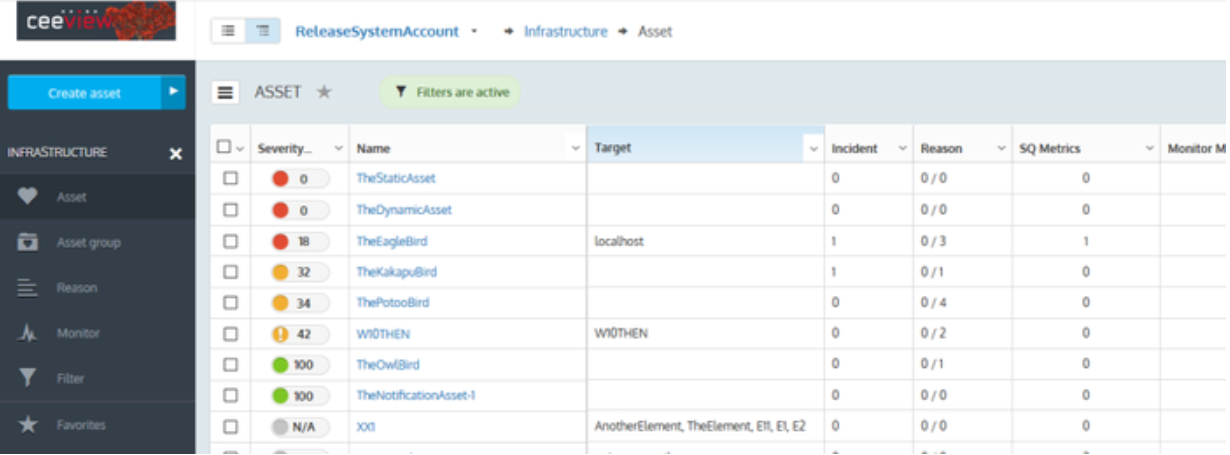
You may access presentation and definition of asset health using the menu item Infrastructure/Asset.
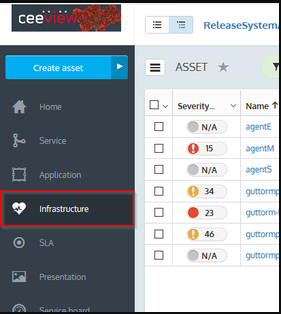
The infrastructure health component offers following actions:
- Asset – overview of all assets
- Asset group – overview of all asset groups
- Monitors – overview of all monitors
- Health reasons – overview of all alarms/reasons
- Filters – overview of all alarm post processing filters (advanced exception handling)
Assets and groups
The first two actions supports presentation of asset health while the latter offers the ability to create, update and delete health monitors.
Monitors
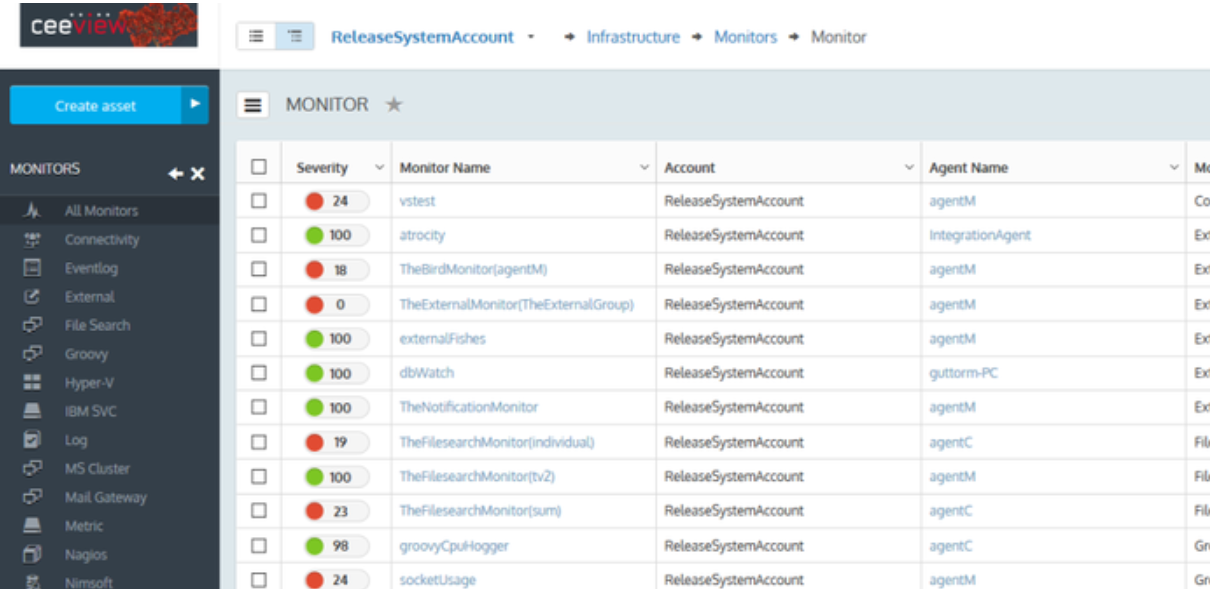
You manage the monitors using the Monitor dialog
Health reasons
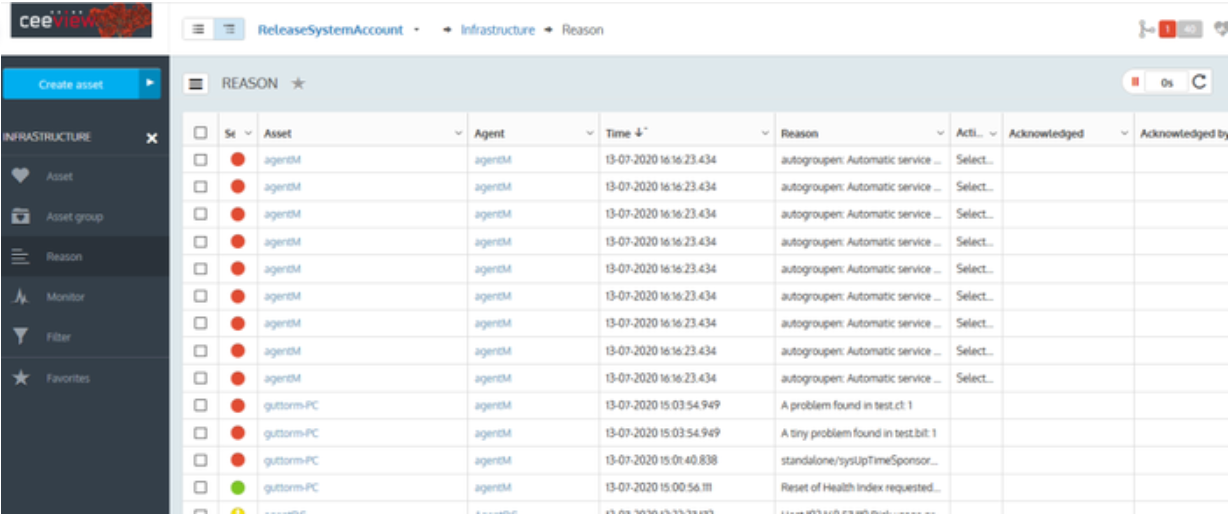
The Reasons dialog provides a list of all reasons
Filters
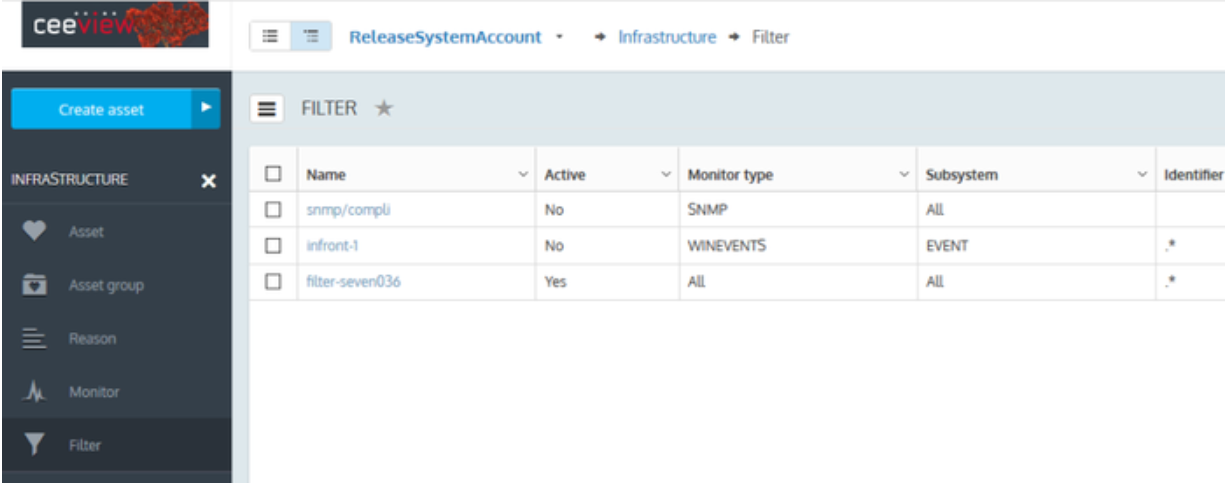
The Filter dialog supports management of filters that can be applied to health/reasons, for instance removing certain reasons before recalculating the health.
The following dialog allow creating and editing of filters
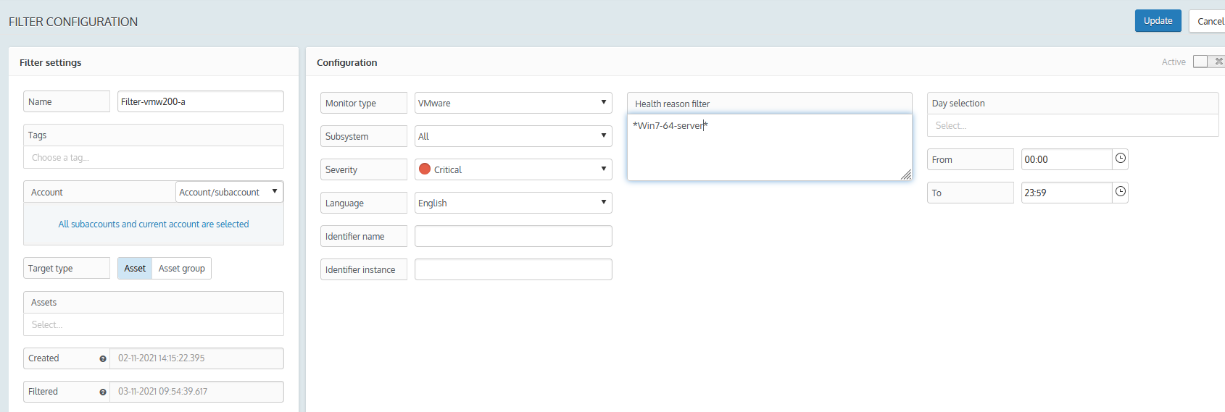
All text fields support exact string match, wildcard matching and regex. Wildcard matching is implemented by converting wildcards (like *) to equivalent regex expression (like .*).
Monitor categories
Ceeview offers a comprehensive set of monitors
Local only
A local only monitor must execute on the asset it monitors – a typical example is the system monitor monitoring cpu, memory disk – and consequently requires that the asset is running an agent.
Remote monitors
A remote monitor allows an asset to be monitored remotely – an example is the SNMP monitor – allowing any agent (with network access to asset) to execute the monitor.
Gateway monitors
Gateway monitors connects to 3rd party monitoring systems – like SolarWinds or Nimsoft – and uses information from these systems in order to dynamically create assets and retrieve monitoring metrics.
When dynamically creating assets based on discovery information from 3rd party systems like SolarWinds or VMWare, Ceeview will attempt to reuse existing assets when possible. The matching algorithm requires the discovered asset to have either a subset or exact same targets as an existing asset. If exactly one such asset is found, the asset will be used and otherwise a new asset will be created.
Monitor's extended type
Each monitor has a attribute "extended type" which for most monitors is equal to the monitor type, for instance the system monitor type has extended type system.
Currently the only exception from this rule is the external monitor type, this monitor type allows it's extended type to be set to a user defined name. So an asset or Assetgroup may for instance have multiple external monitors External/System, External/MyUniqueExtendedExternalMonitor and External/External. The latter is the default if not extended type is specified.
Currently, ie in Ceeview 2.10, the extended monitor type is only visible in the monitor grid and in the reason grid in AssetDetails' Summary and Health tabs. Furthermore it is only possible to create external monitors with non default extended type if using the Ceeview Health Integration API.
Monitor's execution interval
Most monitors execute at a default interval of 60 seconds which may be changed using the Management/Agents/Agent/Services/<monitor type> dialog.
Note that the new interval takes effect at the first execution after the interval has been changed.